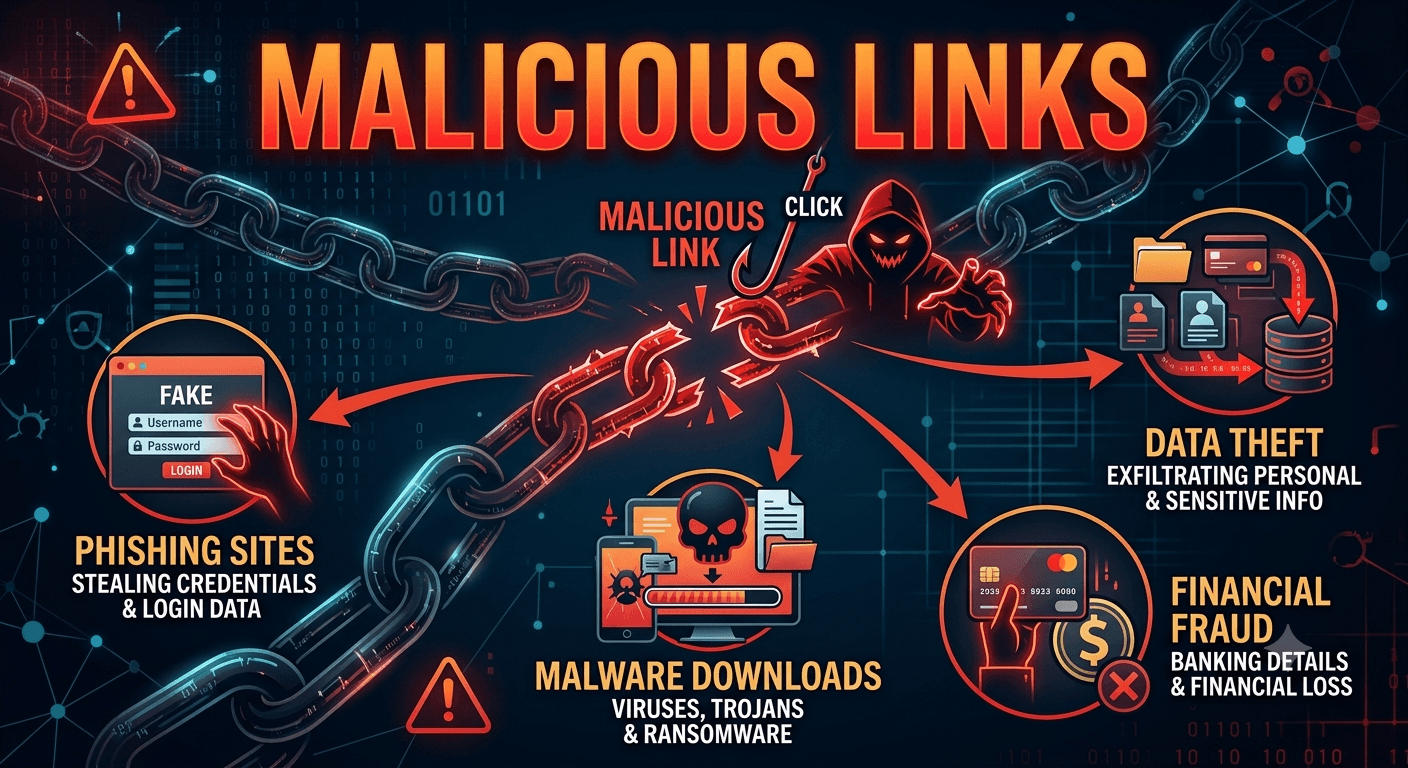
At its simplest, a malicious link (or malicious URL) is a web link created with the intent to scam, defraud, or infect the person who clicks it. Instead of taking you to a legitimate website, clicking one of these links triggers an action that compromises your digital security. Cybercriminals disguise these links to look completely innocent, often mimicking trusted brands, banks, or even your friends.
How Malicious Links Work?
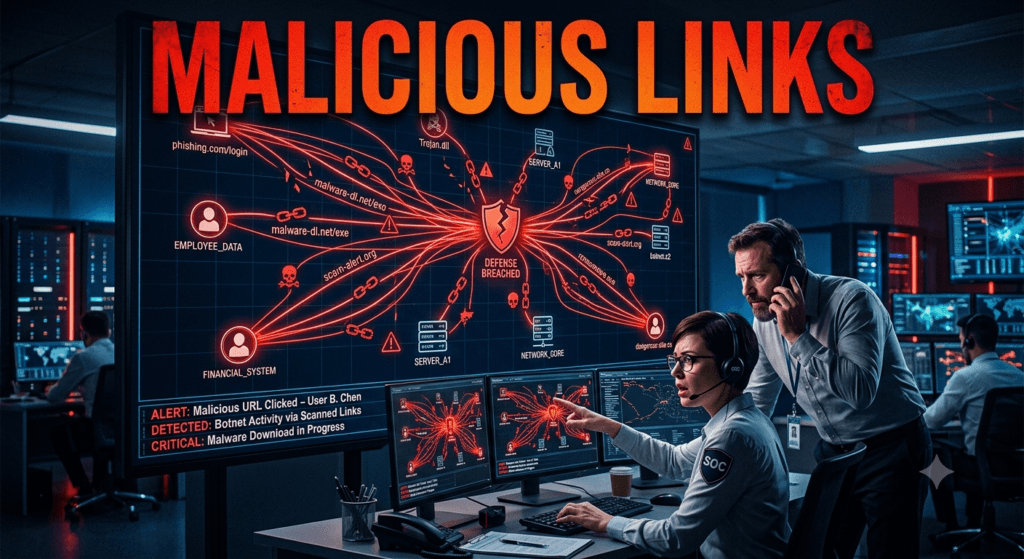
When a user clicks a malicious link, the attack usually falls into one of three categories:
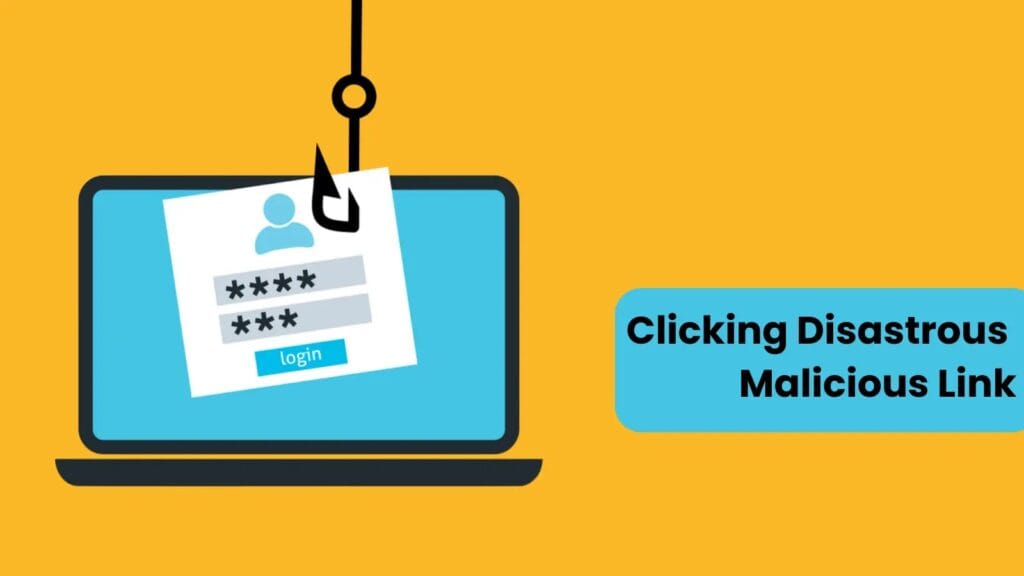
Phishing and Spoofing
The link takes you to a fake website that looks identical to a real login page (like your bank, social media, or email).
- Goal: To trick you into typing your username, password, or credit card details.
- Result: The hackers instantly capture your credentials and hijack your accounts.
Drive-By Downloads (Malware Delivery)
You don’t even have to type anything or click a “download” button for damage to occur.
- Goal: The destination website exploits security vulnerabilities in your web browser or operating system.
- Result: It silently installs harmful software in the background such as Spyware, Keyloggers, Rootkits, or Ransomware without your knowledge or consent.
Exploiting System Vulnerabilities
Some links are coded to trigger specific commands on your device. For example, they might force your browser to execute malicious JavaScript that steals your active session cookies, allowing hackers to bypass two-factor authentication (2FA) and log into your accounts.
Common Ways You Encounter Them
Malicious links are the backbone of most social engineering attacks. You will frequently find them in:
- Phishing Emails: Urgently claiming your account is suspended or a package delivery failed.
- Smishing (SMS Phishing): Text messages disguised as bank alerts, lottery wins, or electricity bill warnings.
- Vishing (Voice Phishing) Follow-ups: Scammers on the phone directing you to type a specific URL into your browser to fix a virus.
- Social Media & Messaging Apps: Hacked accounts sending automated messages to friends saying, “Look who died in this video…” or “Is this you? 😂”
- Malvertising: Legitimate-looking ads on websites or search engines that have been hijacked to point to malicious domains.
How to Spot a Malicious Link Before Clicking?
Cybercriminals are clever, but they leave footprints. Here is how to protect yourself:
- Hover Before You Click: If you are on a laptop or desktop, hover your mouse cursor over the link without clicking it. Look at the bottom left corner of your browser or email client. It will show you the real destination URL. If it doesn’t match the text in the message, do not trust it.
- Analyze the Domain Structure: Scammers use typosquatting to mimic real brands. Look closely at the spelling.
- Legitimate: paypal.com
- Malicious: paypal-support-security.com, paypa1.com, or secure-login-paypal.ne
Tip: Look at what comes right before the very first single forward slash (/). That is the actual domain hosting the site. For example, in microsoft.com.security-update.xyz/login, the actual website you are visiting is security-update.xyz, not Microsoft.
- Beware of Shortened URLs: Attackers love using URL shorteners (like bit.ly, tinyurl, or rb.gy) to hide the final destination of a malicious link. If an unexpected message contains a shortened link, use a URL expander tool (like CheckShortURL or Unshorten.it) to see where it actually leads before opening it.
- Check for HTTPS (with a caveat): While most malicious sites use HTTPS encryption today (meaning the green padlock just means the connection is secure, not that the site is safe), a site using HTTP asking for personal info is an immediate red flag.
What to Do If You Accidentally Click One?
If you realize you’ve clicked a bad link, don’t panic. Take these steps immediately:
- Disconnect from the Internet: Turn off Wi-Fi or unplug your Ethernet cable to stop any background malware from communicating with the hacker’s server.
- Do Not Enter Data: If a page loaded, do not type any passwords or personal info. Close the tab immediately.
- Run a Full Malware Scan: Use a trusted antivirus/anti-malware suite to scan your local storage for any payloads that might have slipped through via a drive-by download.
- Change Your Passwords: If you did type a password, immediately log into the real website from a secure device and change your credentials. Turn on Two-Factor Authentication (2FA) if it isn’t already enabled.